A large Voice Memos library becomes useful once you move it through five stages: the recordings themselves, exporting them out of Apple's app as files, transcribing them, merging those transcripts into one chronological document, and then using that document to search, to write from, or to give an AI tool context on your own thinking. Apple's Voice Memos app covers the first stage, and on macOS Sequoia and later it shows a transcript for one recording at a time, but it has no bulk export and no way to merge transcripts, so stages two through five happen outside the app.
Voice Memo Exporter does this in one pass: every memo into one searchable Master Transcript. $49 early access, runs privately on your Mac.
Recording is stage one, and it is the only one Apple's app finishes for you.
Stage 1The recordingsAudio in Apple's library, synced across your devices.
Stage 2ExportPlain .m4a files in a folder you control.
Stage 3TranscribeText for each recording, by whichever route you pick.
Stage 4MergeOne chronological document with the dates attached.
Stage 5UseSearch it, write from it, or give it to an AI as context.
The five stages, and what each one leaves you with
Every stage has a free route. The reason people stall is not that any single step is hard, it is that steps two through four have to be repeated once per recording.
Swipe the table sideways to compare
Stage
What you end up with
What Apple's app does
What you need something else for
1. The recordings
Audio in Apple's library, synced across your devices
Records, syncs, plays back
Nothing. This part works.
2. Export
Plain .m4a files in a folder you control
Shares or drags out one recording at a time
Getting the whole library out at once, with dates intact
3. Transcription
Text for each recording
Shows one transcript at a time on macOS Sequoia and later
Transcribing in bulk, and getting the text out as files
4. Merge
One chronological document with every transcript in order
Nothing
Combining, ordering, and keeping dates attached
5. Use
Something you can search, quote, write from, or feed to an AI
Nothing
This is the point of the other four stages
Stage 1: The recordings, and where they actually live
On a Mac, synced Voice Memos audio sits in ~/Library/Group Containers/group.com.apple.VoiceMemos.shared/Recordings/, an Apple-managed folder that Finder hides by default. The files are .m4a, which is a container normally holding AAC-compressed audio, or Apple Lossless if you turned Lossless on in the app's settings. At the default quality a recording runs roughly 30 MB per hour. You can copy files out of that folder, but do not rename or delete anything inside it: the app keeps its own database of what should be there, and editing it in place is how libraries get confused.
Recordings reach your Mac through iCloud sync, not through any third-party app logging in.
If a recording plays in Voice Memos on your Mac, it is genuinely on your Mac.
A recording that only ever existed on one device, with sync off, exists in exactly one place.
Stage 2: Getting the files out of Apple's app
Three routes, in rough order of how many recordings you have.
1
Share recordings one at a time from the iPhone
Tap a recording, tap share, then Save to Files or AirDrop. You get a normal .m4a file. Fine for a handful. There is no select-all, so this is one interaction per recording.
2
Drag recordings out of the Mac Voice Memos app
Once the library has synced to your Mac, you can select multiple recordings in the Mac app and drag them into a Finder folder. This is the fastest free route for bulk audio. What you get is audio only: the app's titles and recording dates do not travel with the files as usable metadata, and nothing is transcribed.
3
Pull them from a device backup
If the recordings are on a phone you cannot sync, or only exist inside an old backup, a device-backup tool such as iMazing is the right category of tool for that specific job. It works at the backup level rather than the library level.
Stage 3: Transcription, and what accuracy to expect
Four routes, all of which work. Apple's built-in transcripts (macOS Sequoia and later, iOS 18 and later) are free and need no setup, but they display one recording at a time and there is no export button, so getting the text out means selecting and copying it by hand. Open-source Whisper, usually via whisper.cpp, is free, runs locally, and handles batches well, at the cost of a Terminal setup and multi-gigabyte model downloads. A dedicated Mac transcription app such as MacWhisper wraps the same models in an interface and is the strongest option if your files are not Voice Memos at all. A cloud service such as Otter is built for live meetings and is the only category here that does reliable speaker labels, with the tradeoff that your audio is processed on someone else's servers. Whichever you pick, accuracy is decided mostly by the recording: close microphone and one speaker in a quiet room transcribes well, and distance, background noise, or overlapping voices does not.
None of the local routes do reliable speaker separation.
Treat any automatic transcript as a searchable draft, not a verbatim record.
Keep the original audio regardless. It stays the source of truth.
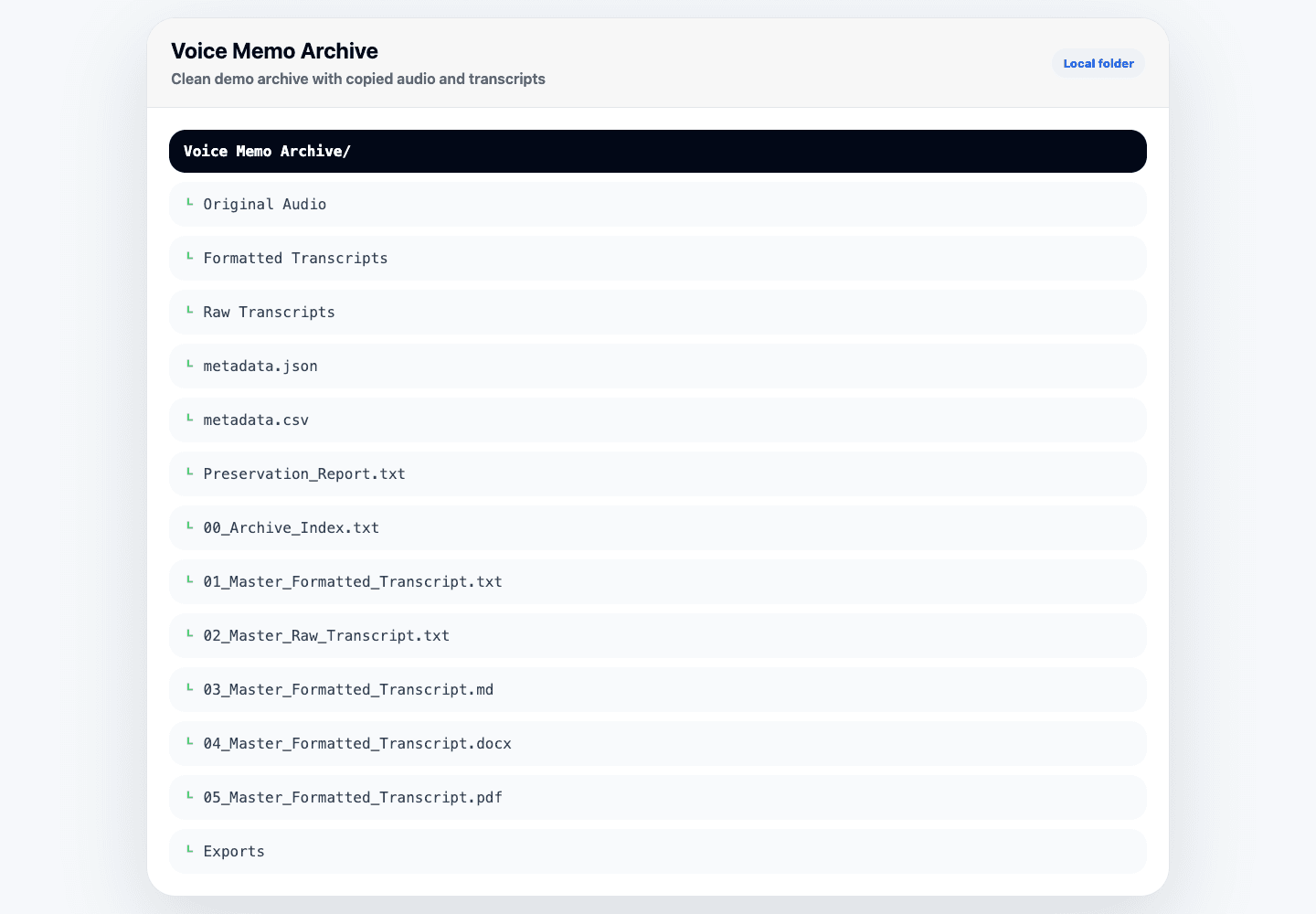
What stages two through four leave you with: one folder of plain files, not a list inside an app. Screenshot: Voice Memo Exporter
Stage 4: One document instead of hundreds
This is the stage almost everyone skips, and it is the one that actually changes what the material is good for. A folder of three hundred transcript files is still three hundred things. One chronological document with every transcript in order, each with its date, is a single thing you can read, search with Cmd-F, scroll through, or hand to somebody else. Merging is genuinely free: in Terminal, cat *.txt > master.txt concatenates a folder of text files, and any text editor will do it by hand. The work is not the merge, it is keeping the order right and keeping each entry's date attached, which is exactly what gets lost when transcripts are copied out one at a time over several sittings. Keep the master as plain .txt or Markdown. Both open in anything, on any operating system, with no dependency on a specific app still existing. DOCX and PDF are worth generating when you need to share or print, but treat those as derived copies rather than the original.
The honest cost
What all five stages cost by hand
Per recording, the manual path runs roughly two to four minutes once you account for opening it, waiting for the transcript, copying, pasting, labeling it with a date, and putting it in the right place. That number is the whole decision. At 50 recordings it is an afternoon and entirely reasonable. At 200 it is somewhere between seven and thirteen hours. At 800 it is a part-time job, which is why most people who start this stop somewhere in the middle and end up with a half-finished folder that is worse than either extreme.
No batch transcription and no transcript export in Apple's Voice Memos app.
Recording dates are the first thing lost when copying text out by hand.
Ordering drifts once the work is spread across several sittings.
There is no resume: an interrupted manual pass leaves no record of where you stopped.
There's a faster way than doing this by hand.
Voice Memo Exporter does the steps above in one pass: every Apple Voice Memo on your Mac exported, transcribed locally, and combined into one searchable Master Transcript. $49 early access, private by design.
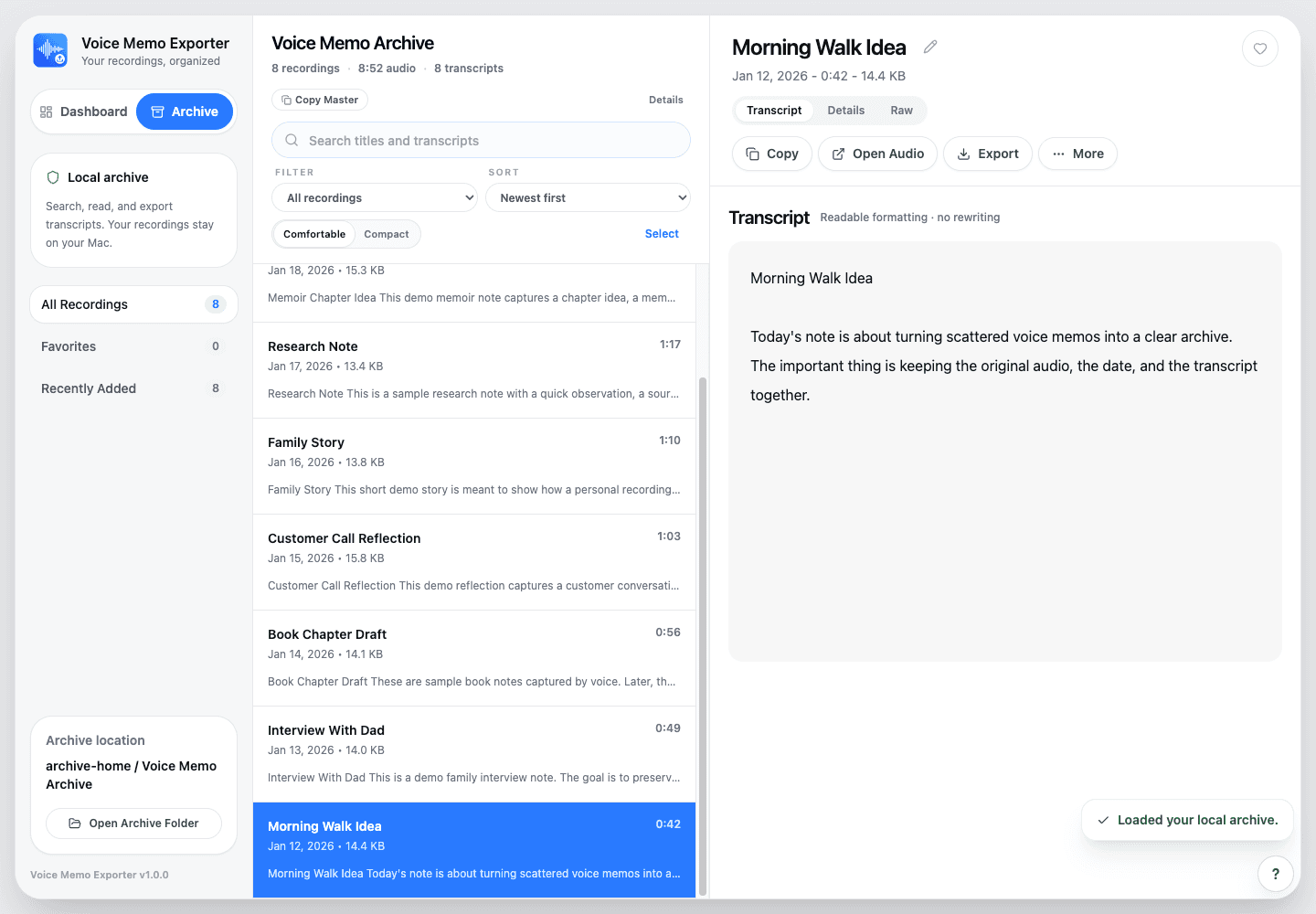
Stage 5: with the text and the original audio side by side, a rough patch in a transcript is one click from the recording it came from. Screenshot: Voice Memo Exporter
Stage 5: What the finished document is actually for
Four uses, and they are genuinely different from each other. Searching your own past: one Cmd-F across years of recordings finds every time you mentioned a person, a project, or an idea you forgot you had. Giving an AI real context: uploading the merged document to a ChatGPT Project or a Claude Project means the model works from your actual recorded thinking rather than from a blank page, which is a different thing from the built-in memory features, because the file is one you can read, edit, and version yourself. Writing: spoken drafts, chapter fragments, and arguments you have talked through become raw material you rewrite from rather than a blank document. Preservation: interviews with relatives, and recordings of voices you will not be able to record again, become something a family member can actually read and search in twenty years.
When you do not need any of this
Worth saying plainly, because the honest answer for a lot of people is that the whole pipeline is overkill. Under about thirty recordings, exporting by hand from Apple's app takes an afternoon and costs nothing. If you only want one specific recording as a file, use the share sheet and stop. If what you need is live meeting notes with speaker labels, that is a meeting transcription service, not an archive workflow. If your audio is not Apple Voice Memos at all, a general transcription app is a better fit than anything built around the Voice Memos library. And if the recordings are stuck on a phone you cannot sync, that is a device-backup problem to solve first, before any of this applies.
Picking a route for your situation
Swipe the table sideways to compare
Your situation
Reasonable approach
Cost
Under about 30 recordings
Export by hand from Apple's app, transcribe with the built-in transcripts, merge in a text editor
Free, one afternoon
A few hundred, and you are comfortable in Terminal
Drag audio out of the Mac app, run whisper.cpp over the folder, merge with cat
Free, plus setup time and manual organizing
A few hundred, and you are not
A purpose-built one-pass tool, or accept that it stays undone
Paid, or nothing
Recordings stuck on a phone or in an old backup
A device-backup tool such as iMazing, before anything else
Paid
You mostly need accurate transcription of non-Voice-Memo files
A general transcription app such as MacWhisper
Free tier, paid upgrade
You need speaker labels for meetings
A cloud meeting service such as Otter
Subscription
You have not opened the app in two years and do not miss it
Do nothing. Seriously.
Free
Keeping it current
A merged document is only useful if it reflects roughly where your thinking is now, but trying to keep it perfectly current after every recording is what makes people abandon it. A monthly or quarterly rebuild is a reasonable rhythm for most people: it is infrequent enough to stay a small job, and current enough that the document is worth opening. One practical limit if you are using it as AI context: a very large library can exceed what a given tool will accept in one file or hold in one context window, and the fix is to split by date range, usually one file per year, rather than trying to force the whole thing in at once.
Related questions
Questions about what to do with years of voice memos.
Can I do all of this without buying anything?
Yes. Every stage has a free route: export by hand or drag recordings out of the Mac Voice Memos app, transcribe with Apple's built-in transcripts on macOS Sequoia or later or with Whisper from the command line, and merge with cat in Terminal or in a text editor. What you spend instead is time, roughly two to four minutes per recording, plus the attention it takes not to lose dates and ordering along the way.
How many recordings is too many to do by hand?
There is no hard number, but the arithmetic is simple: multiply your library size by two to four minutes. Thirty recordings is an afternoon at most. Three hundred is somewhere between ten and twenty hours of repetitive copying, which is where most people abandon the project partway through.
Does Apple's Voice Memos app have a bulk export or a way to export transcripts?
No. You can share or drag individual recordings out as audio files, and on macOS Sequoia and later you can view a transcript for one recording at a time on screen, but there is no select-all export and no transcript export or merge. Everything past a single recording happens outside the app.
Is a merged transcript the same thing as ChatGPT's or Claude's memory feature?
No, and the difference is control. Built-in memory features extract facts from your conversations over time, and you have limited visibility into what was kept. A merged transcript is a plain file you build, read, edit, version, and can hand to any AI tool, including a local model. It also holds your actual reasoning and phrasing rather than extracted bullet points.
What format should the archive be in so it is still readable in ten years?
Keep the original audio as-is, and keep the text as plain .txt or Markdown. Both open in any text editor on any operating system with no dependency on a specific app. DOCX and PDF are worth generating as well when you need to share or print, but treat them as derived copies rather than the master, because plain text is the version that will still open without effort.
Or skip the manual version entirely.
Voice Memo Exporter runs this whole workflow in one pass on your Mac: every memo exported, transcribed locally, and combined into one searchable Master Transcript you own.