Do I need to install anything else?
No extra account is required. You can start by creating an audio archive. If you want transcripts, the app can guide you through local transcription setup.
Install guide
Download the DMG, drag the app into Applications, and start turning your Voice Memos into a clean local archive.
No account. No iCloud login inside the app. Your recordings stay on your Mac.
Download the DMG
Open the installer
Drag Voice Memo Exporter into Applications
Open the app and choose where your archive will live
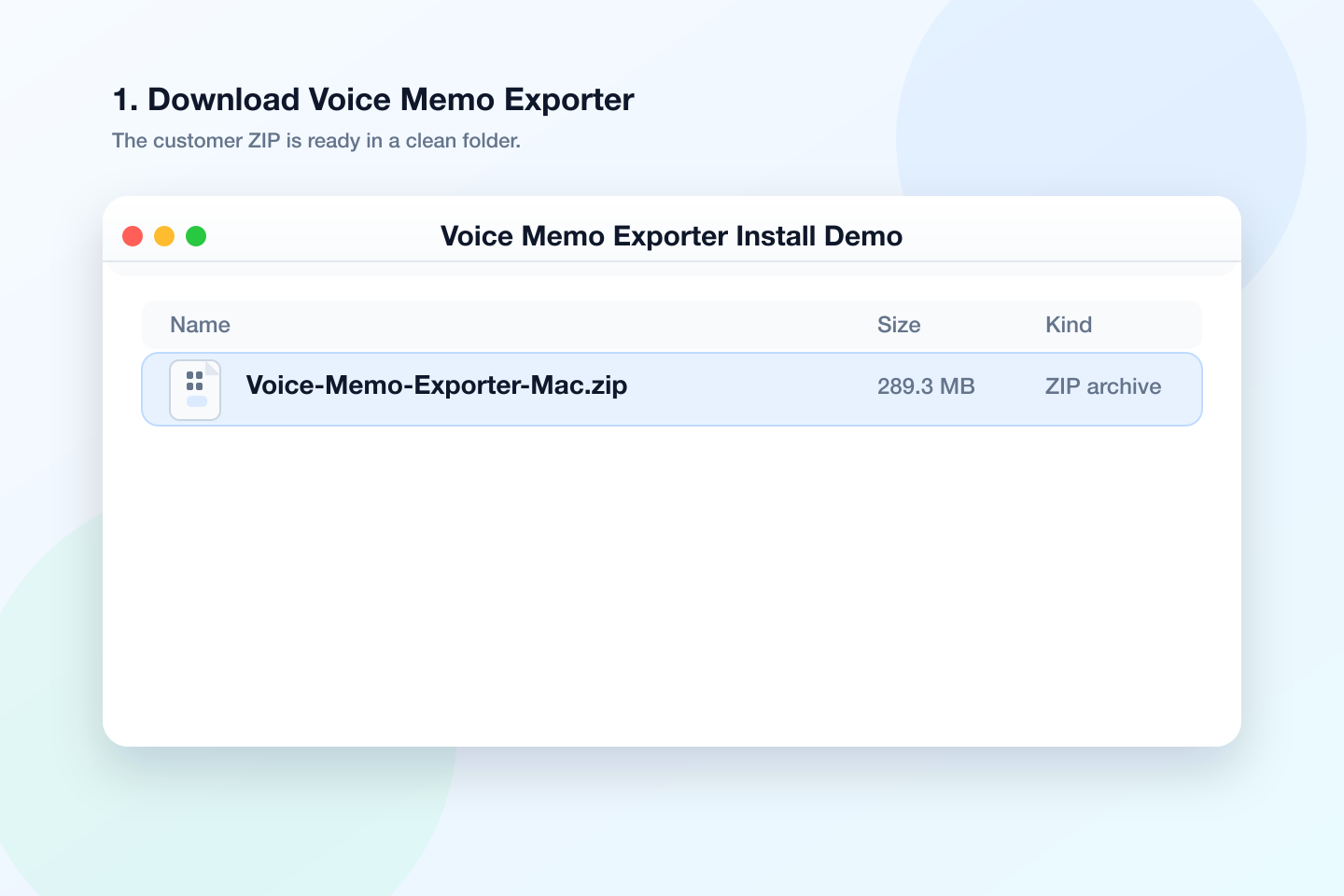
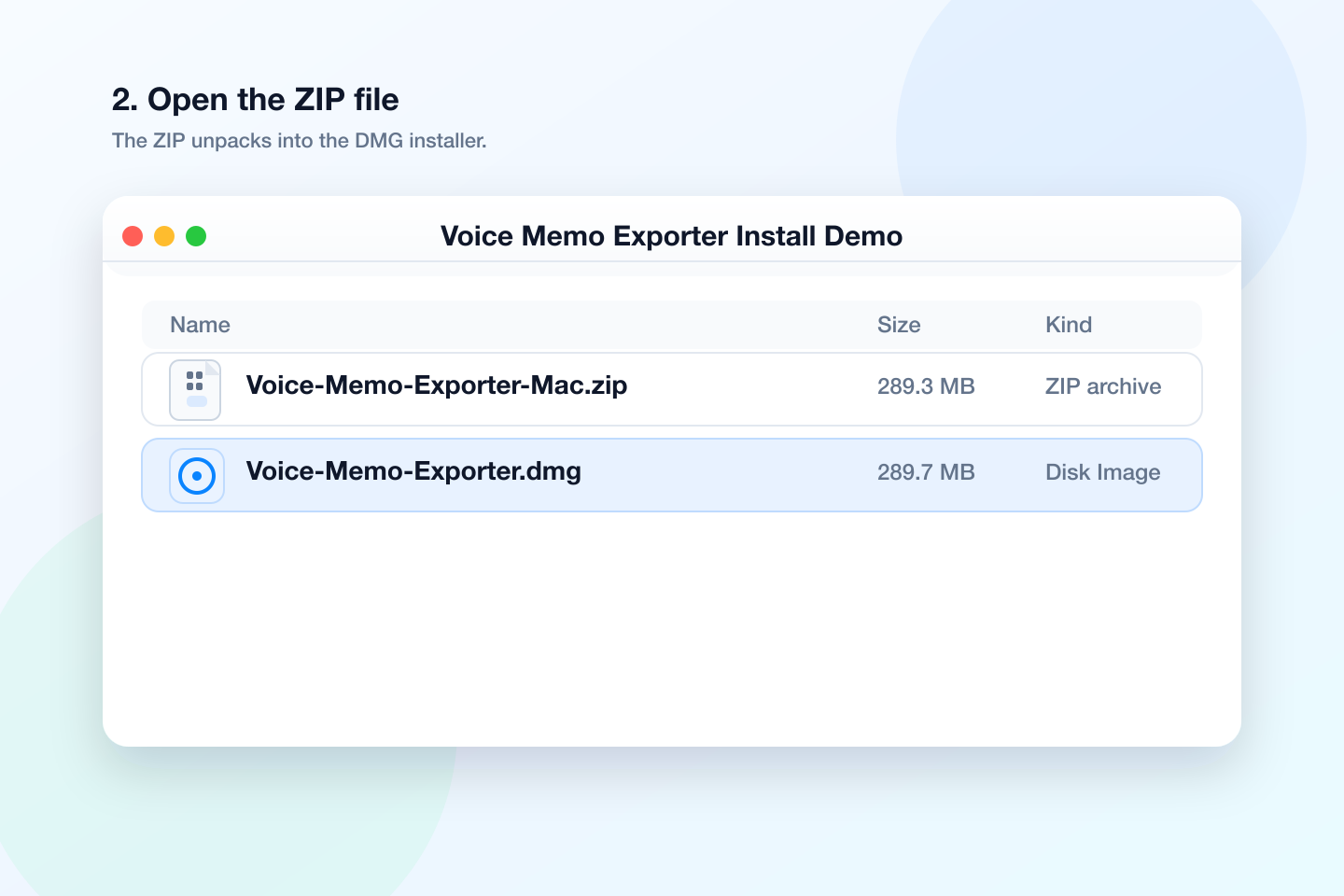
This is the normal Mac install flow: download the installer, move the app into Applications, then choose where your archive will live.
When your download finishes, you should see a file named something like VoiceMemoExporter.dmg or Voice-Memo-Exporter.dmg.
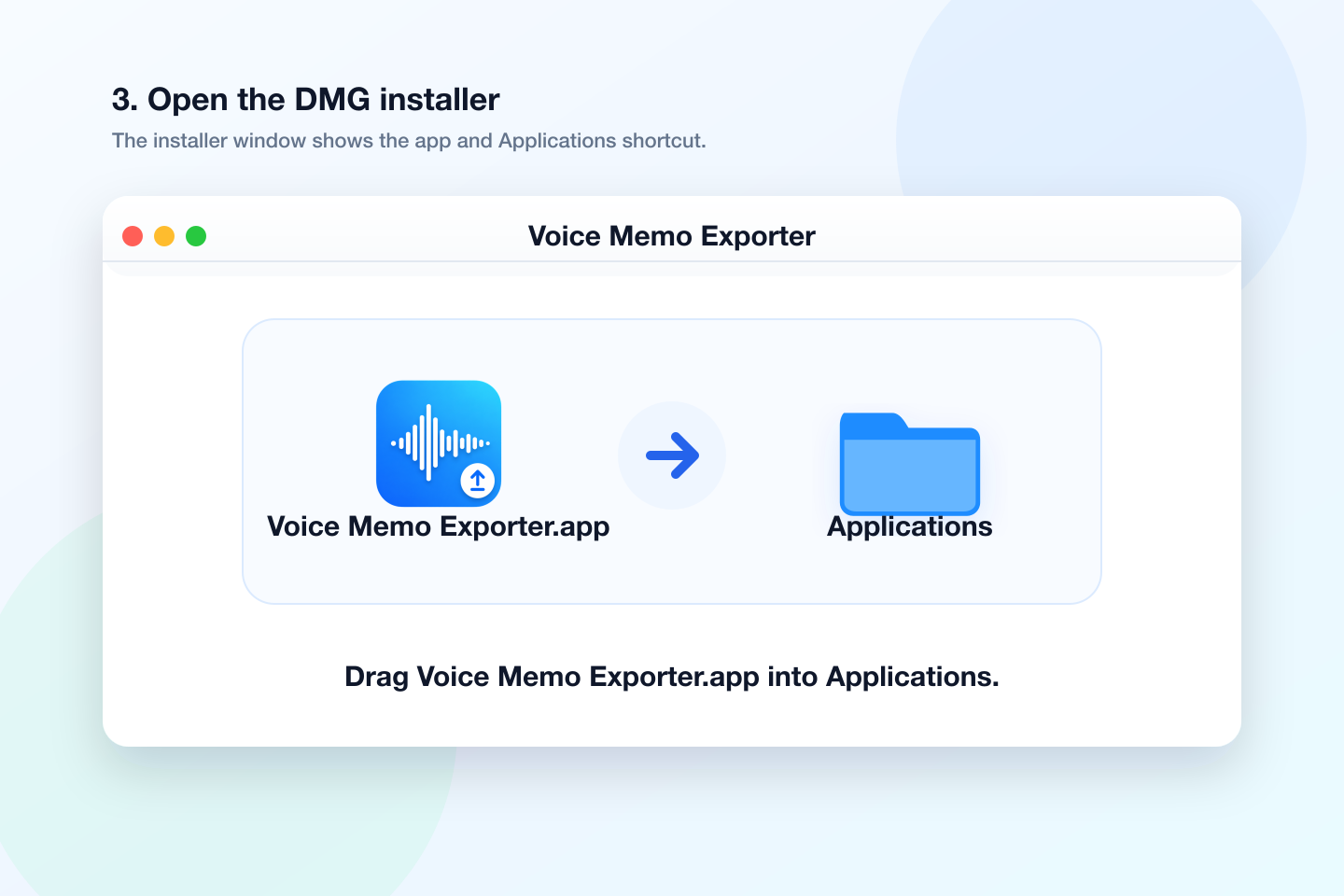
Double-click the DMG. A small installer window will open with Voice Memo Exporter on one side and Applications on the other.
Drag the app icon into the Applications folder. This installs the app like a normal Mac app.
Open your Applications folder and launch Voice Memo Exporter. If macOS asks for confirmation the first time, right-click the app and choose Open.
Pick a folder where Voice Memo Exporter can create your local Voice Memo Archive. Your original recordings are not edited, moved, renamed, or deleted.
Once your archive location is set, you can find Voice Memos available on your Mac or import an exported audio folder.
Voice Memo Exporter does not log into iCloud or pull recordings directly from your iPhone. It works with Voice Memos that are already available locally on your Mac.
Voice Memo Exporter is built for people who want to preserve recordings without handing them to a cloud transcription account.
No extra account is required. You can start by creating an audio archive. If you want transcripts, the app can guide you through local transcription setup.
No. Voice Memo Exporter does not ask for your Apple ID and does not log into iCloud inside the app.
Not directly. Open Apple Voice Memos on your Mac first and let recordings appear there, or import exported audio files manually.
Choose a folder you control, such as Documents, an external drive, or a dedicated archive folder you back up.
Use the app on the Macs covered by your license. Keep each archive in a folder you control on that Mac or external storage.
Right-click Voice Memo Exporter in Applications and choose Open. After the first approved launch, opening the app is normal.
No cloud upload is required. Voice Memo Exporter creates a local archive on your Mac in a folder you choose.
Yes. After Voice Memo Exporter is in Applications and opens correctly, you can eject and delete the DMG file.
Once the app is installed, you can turn years of Voice Memos into a local archive with copied audio, metadata, transcripts, and export-ready documents.